Saturday, May 17, 2014

Recover Deleted Files

Lost files can usually be recovered—if you discover the loss soon enough. But every time you write to the hard drive, you lower the likelihood of a successful recovery. So use that computer as little as possible until the files are recovered or you’ve given up hope. 

Check the Recycle Bin 

Windows stores “deleted” files here as a safety measure. You’ll find the icon in the upper-left corner of your screen. if you find the files there, select them, right-click them, and choose Restore.

Sunday, April 13, 2014

Replace Windows 8 with Windows 7 or a look-alike

You can make Windows 8 behave very much like Windows 7. With far less work than it takes to reinstall an alternate operating system, you can create a reasonable facsimile of Microsoft’s best user interface.

 First, you need a third-party Start Menu program. There are many
out there, but my favorite is the free Classic Shell. It creates a very close approximation of the Windows 7 Start Menu, with all of the features in the right places.

Monday, February 17, 2014

How to format a write-protected USB flash drive

Some memory cards and USB pen drives have write protection switches, which allows you to prevent files from being deleted, or any new files being written to the device. It also prevents the drive or card from being formatted.

Occasionally, you’ll find that a USB flash drive will refuse to format and Windows will tell you that it is write protected, even though there is no switch.
Here are a couple of methods you can try to format the drive and remove the write protection. Bear in mind that there is no guarantee that they will work for you: your drive or memory card may be corrupt or broken and no utility or low-level formatting tool will make it work again. The only solution in this case is to buy a new drive.

Sunday, January 19, 2014

Preventing ransomware and Malware infections

Avoiding ransomware is much the same as avoiding other types of other malware.

Always run a good antivirus utility and keep Windows and browser-related components (Java, Adobe, and the like) updated. Keep your browser clean to prevent adware invasions that could lead to malware infections. Always, always be wary of unexpected email attachments and spam. (CryptoLocker spreads via .zip files sent as email attachments, for example.)

And just to beat this dead horse one more time: Always have a good backup system in place, just in case your PC does become infected and you can’t recover your files. Yes, it’s that important.

Rescue your PC from ransomware

With the nasty CryptoLocker malware making the rounds—encrypting its victims’ files, and then refusing to provide the unlock key unless a payment of $300 is made via Bitcoin or a prepaid cash voucher—ransomware is back in the spotlight.

You can remove many ransomware viruses without losing your files, but with some variants that isn’t the case. In the past I’ve discussed general steps for removing malware and viruses, but you need to apply some specific tips and tricks for ransomware. The process varies and depends on the type of invader. Some procedures involve a simple virus scan, while others require offline scans and advanced recovery of your files. I categorize ransomware into three varieties: scareware, lock-screen viruses, and the really nasty stuff.

Saturday, April 20, 2013

Back up Your Data

Your computer is not invulnerable. Hard-drive failures happen, as do floods, fires, earthquakes, thefts, and other calamities. The hardware in your computer is replaceable, but the data inside—whether critical business documents or precious family photos—might not be. If you don’t want to face the gut-wrenching realization that you’ve lost something important, you need to have a backup plan. Here’s how you can protect yourself, right now.

Sunday, July 8, 2012

How to avoid Malware meltdown

Will YOU lose the internet on Monday?

  • Hundreds of thousands of PCs still at risk worldwide
  • FBI 'ring-fenced' the virus late last year - but protection ends on Monday
  • See below for advice on checking if your computer has been infected
Tens of thousands of Americans whose computers are infected with malware will lose Internet service on Monday - but the meltdown is preventable by following a few simple steps.
The impending crash will affect those whose computers have been infected with the nasty 'Alureon/DNS Changer bot' when the FBI takes down the servers at 12.01 a.m. on Monday, July 9.

To avoid the meltdown, users need to determine if their computer is infected with DNS Changer. Antivirus software will not have offered protection, and Mac computers are also at risk.

Tuesday, May 22, 2012

Windows 8 is a major OS overhaul

Here's a look at Windows 8's new security tools and features, but some of the most important additions might be the ones you can't see.

When Windows 8 comes out later this year, the new Start screen and Metro-style apps will likely be the first changes you'll notice, but those aren't the only things that are new. Microsoft is also making some serious security enhancements to help keep your system safer and to improve Windows' ability to combat viruses and malware. It just may be the biggest improvement to Windows security yet.

Sunday, February 5, 2012

Cyber Security

Electronic communications networks must be ultra secure in order to build confidence, disposal of physical documents also poses a security risk 

INFORMATION security experts last week urged businesses in SA that deal with personal information to review their cyber security and the disposal of physical documents practices constantly to protect clients’ and employees’ information.
Data events such as hacking, data loss, unauthorised data use, and the physical disposal of documents all present risk to businesses and consumers.

Sunday, November 6, 2011

What's best for my computer: Hibernate, sleep, or shut down?

Q: Does putting my computer to sleep help extend the battery life? What else can I do to save energy and make my new computer last? 

A: We’ve all heard stories about what's best for a computer’s battery. That’s why I was excited to make friends with Fred Peters, president of Huntington Beach IT Services.

In addition to teaching computing courses in Orange County, Calif., Peters happily makes house calls to revive frazzled computers and the people who rely on them.

Here are his expert tips on how to keep your new laptop running smoothly.

Monday, October 17, 2011

Cyber Threats Forecast for 2012

The year ahead will feature new and increasingly sophisticated means to capture and exploit user data, as well as escalating battles over the control of online information that threatens to compromise content and erode public trust and privacy. Those were the findings announced by the Georgia Tech Information Security Center (GTISC) and the Georgia Tech Research Institute (GTRI) in today's release of the Georgia Tech Emerging Cyber Threats Report for 2012. The report was released at the annual Georgia Tech Cyber Security Summit, a gathering of industry and academic leaders who have distinguished themselves in the field of cyber security.

Sunday, October 16, 2011

Speed Up Your Windows XP

Pursue Some tricks we can make our Windows more faster that never happen before and usually these all are unnecessary for each time. Some features are usually for only looking attractive. Optimizing Display Settings Windows XP mostly like for its visual interface. We do not interfere that but on this visualization has more extra feature that does not need ever without wasting system resource. Lets see how we can disable it-
1. Go to Start Menu
2. Click Setting.
3. Click Control Panel
4. Click System.
5. Go Advance Tab
6. Click Setting under Performance group
7. Off only the following ticked
* Show Shadows under Menu
* Show Shadows under Mouse Pointer.
* Show Translucent Selection Rectangle
* Use drop shadows for icons labels on desktop.
* Use visual style on windows and buttons

OPTIMISE YOUR PAGEFILE

If you give your pagefile a fixed size it saves the operating system from needing to resize the page file.
1. Right click on My Computer and select Properties
2. Select the Advanced tab
3. Under Performance choose the Settings button
4. Select the Advanced tab again and under Virtual Memory select Change
5. Highlight the drive containing your page file and make the initial Size of the file the same as the Maximum Size of the file. Windows XP sizes the page file to about 1.5X the amount of actual physical memory by default. While this is good for systems with smaller amounts of memory (under 512MB) it is unlikely that a typical XP desktop system will ever need 1.5 X 512MB or more of virtual memory. If you have less than 512MB of memory, leave the page file at its default size. If you have 512MB or more, change the ratio to 1:1 page file size to physical memory size.

REMOVE THE DESKTOP PICTURE 

Your desktop background consumes a fair amount of memory and can slow the loading time of your system. Removing it will improve performance.
1. Right click on Desktop and select Properties
2. Select the Desktop tab
3. In the Background window select None
4. Click Ok

REMOVE FONTS FOR SPEED

Fonts, especially TrueType fonts, use quite a bit of system resources. For optimal performance, trim your fonts down to just those that you need to use on a daily basis and fonts that applications may require.
1. Open Control Panel
2. Open Fonts folder
3. Move fonts you don’t need to a temporary directory (e.g. C:\FONTBKUP?) just in case you need or want to bring a few of them back. The more fonts you uninstall, the more system resources you will gain.
Enhanced by Zemanta

Wednesday, October 12, 2011

SA Symantec Intelligence Report

Johannesburg - Symantec on Tuesday announced the results of the September 2011 Symantec Intelligence Report, which saw phishing attacks in South Africa increase once again.

The country is now positioned as the most targeted geography for phishing, with one in 133.1 emails.

This month’s analysis also reveals that a deluge of malicious email-borne malware has left a clear mark on the threat landscape for September. Approximately 72 percent of all email-borne malware in September could be characterised as aggressive strains of generic polymorphic malware, first identified in the July Symantec Intelligence Report. At the end of July, this rate was 23.7 percent, in August it fell slightly to 18.5 percent before soaring to 72 percent in September.

“This unprecedented high-water mark underlines the nature by which cyber criminals have escalated their assault on businesses in 2011, fully exploiting the weaknesses of more traditional security countermeasures,” said Paul Wood, Senior Intelligence Analyst, Symantec.cloud.

Further analysis reveals that the social engineering behind many of these attacks has accelerated with the adoption of a variety of new techniques, such as pretending to be an email from a smart printer/scanner being forwarded by a colleague in the same organisation has been detected.

“The idea of an office printer sending malware is an unlikely one, as printers and scanners were not actually used in these attacks, but perhaps this sense of security is all that is required for such a socially engineered attack to succeed in the future,” Wood said.

Although spam levels remained fairly stable during September, Symantec Intelligence observed the use of identified vulnerabilities in certain older versions of the popular WordPress blogging software on a large number of web sites across the internet. Spam emails containing links to these compromised web sites are being spammed out. It is however important to note that blogs hosted by WordPress itself seem to be unaffected.

Additional research reveals that JavaScript is becoming increasing popular as the programming language used by spammers and malware authors. Spammers use it to conceal where they are redirecting pages, and in some cases, to conceal entire web pages.

“For spammers, hosting simple JavaScript obfuscation pages on free hosting sites can increase the lifetime of that site before the site operator realises the page is being used for malicious activity,” Wood said. “JavaScript is popularly used for redirecting visitors of a compromised web site to the spammer's landing page. While some of these techniques have been common in malware distribution for some time, spammers are increasingly using them.”
Originally posted on iol scitech
Enhanced by Zemanta

Monday, September 19, 2011

Make Your Computer Energy Efficient

I know that my computer has energy-efficiency settings. Yours does, too. But I almost never mess with them. For some reason, for a lot of us, messing with the settings is one of those things you hear about, and know about, but put off to take care of “later,” when you find yourself at the computer with “some free time.” But let’s be honest—your free time at your computer (and mine!) is a lot more likely to be devoted to trolling gossip sites and Facebook than to fine-tuning your computer’s energy settings. So let’s take a minute and change that today. Here’s some very simple advice—some of which you can put into action right now, while you read this entry. You’ll save energy going forward, and you’ll assuage that guilty conscience by finally taking some easy little steps toward a more efficient home or office.

* Hibernation: With winter dragging on and on, doesn’t hibernation sound so appealing right now? Well, your computer feels the same way. Allow it to take nice little naps during the day when you wander away on coffee breaks, lunch breaks, talk-to-your-coworkers-in-the-hallway breaks, or whatever it is you do when you’re not doing what you’re supposed to be doing. Ok, first, go into your computer’s power management panel… Seriously, do this right now! Now, set the display and the hard drive to both go to sleep after 10 minutes or less of inactivity. Next, make sure the entire system is set to go into standby/sleep mode within 20-30 minutes. The lower you can keep the numbers in these settings, the better. That was so easy, right?

* Screen saver = energy waster: Can you believe it? Well, it’s true! Screen savers are a leftover idea from the early days of picture tube monitors, completely unnecessary for today’s monitors. They actually use a lot more energy than simply setting your monitor to dim itself before going to sleep would. So ditch the scrolling photos of frogs and blades of grass for some truly green action: Set your monitor to dim after 5 minutes or less of inactivity.

* Dim your watts: The brightest setting on your monitor causes it to gobble up twice as much energy as the dimmest setting. Save those wasted watts by keeping the monitor running on a much dimmer setter all the time. As the daylight changes wherever you’re using your computer, adjust the brightness.

* Strip smarter: Need we have the power strip conversation again? So, you know that it’s a good idea to plug electronics into a power strip to avoid that phantom load we’ve talked about before. This is an especially good idea when it comes to your computer, which tends to hang out with a lot of power-hungry friends like printers and speakers. The best solution of all is to get a smart plug strip, which will automatically cut the power flow when your computer and its posse aren’t in use. Automatic is good, because it’s one less thing for you to remember!

Wednesday, August 31, 2011

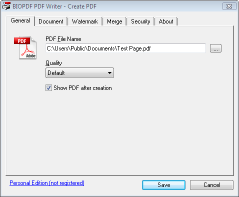
BioPDF PDF Writer

BioPDF PDF Writer
Version: 6.0.6.745 
License Type: Free
Price: Free
OS: Windows 2000, Windows XP, Windows Vista, Windows Server 2003, Windows Server 2008 
File Size: 3987 KB 
Author: BioPDF


Download Now


BioPDF PDF Writer installs easily, automatically downloading and installing the Ghostscript Light PDF printer driver for which it's a front-end. It also offers the same watermarking, password protection, and merging. The only real differences seem to be a slight variation in the install routine and pricing. Where Bullzip is free but will accept donations via PayPal, BioPDF can be registered and paid for at the program's Web site.

As downloaded, BioPDF PDF Writer is free for personal use. No matter which version you opt for, opt for one. Bullzip and BioPDF PDF Writer are in a class of their own when it comes to ease of installation, ease of use, and features. Another big plus--no nags or ads.


BioPDF PDF

For admins, bioPDF is simple and flexible to adapt and deploy, with support for unattended setup scripts, Citrix Metaframe, and more. End-users find the PDF writer fast and intuitive to use, emboldened by the fact that the interface is localized into multiple languages. This leads to swift adoption and low support requirements. When all users can and do print to PDF, fewer potentially harmful or unreadable file formats are distributed and paper use is greatly reduced throughout the organization.

How Does it Work?

The bioPDF PDF Writer works as a Microsoft Windows printer and allows you to write PDF documents from virtually any Microsoft Windows application.

Feature Overview 
  • Print to PDF from almost any Windows application.
  • Supports 64-bit operatings systems.
  • Direct output to the same file each time or prompt for destination.
  • Control if the printer should ask if you want to see the resulting PDF document.
  • Control settings and prompts programmatically.
  • Setup can run unattended.
  • Graphical user interface.
  • Password protect PDF documents.
  • 128/40 bit encryption.
  • Quality settings (screen, printer, ebook, prepress).
  • Set document properties.
  • Watermark text, size, rotation, and transparency.
  • Superimpose/background documents.
  • Appending/prepending documents.
  • User interface control.
  • Command line interface to all settings.
  • COM/ActiveX API interface for programmatic control.
  • Microsoft.NET API and command line API.
  • Support for Citrix MetaFrame
  • Support for Windows Terminal Server
  • Create BMP, EPS, PS, PNG, PCX, JPEG, and TIFF files as alternative to PDF documents.
  • Create linearized PDF files for optimized web viewing.
  • Initial zoom settings.
  • Page thumbnails.
  • Create one PDF for all pages or one file per page.
  • Individual horizontal and vertical resolution for image creation.
  • Configure text and graphics alpha bits to support smooth edges in images.
Download and See For Yourself

Saturday, August 13, 2011

How safe are our Windows PCs from malware?

What percentage of PCs in the United States are infected with malware? If you’ve been following the mainstream press recently, you might have read an alarming statistic: “Nearly half of personal computers in the U.S. are compromised by malware.”

That statement is an outright fabrication. It is not true. It is not even remotely accurate, based on objective data. The actual number varies, depending on where you are in the world, but for Windows users who have automatic updates turned on, the worldwide average is somewhere between 1% and 2%. In my opinion, if you practice the basics of online security, the likelihood that your Windows PC is infected by malware is a tiny fraction of 1%.

And yet that alarming and bogus 50% number was stated as if it were a fact in a feature story last week at CNNMoney.com. That story has so far been recommended by 371 people on Facebook. The same “fact” was repeated in a variety of other online sources, including thestreet.com, CNBC.com, businessweek.com, businessinsider.com, and boston.com, to name just a few.

It hit my radar when I saw the number quoted in a tweet from Mark Russinovich, a Technical Fellow at Microsoft and one of the smartest people I know.

My first reaction was “Oh really?”

My second reaction was to do some research. It took me less than 15 minutes to knock down this story, which is just the latest example of a depressing truism: If you give the mainstream press a computer story, you can usually count on them to get it wrong. If you give them a sexy press release with a provocative number, you can cinch the deal.

This case starts with a press release from Staples, dated April 5, 2011. Here’s the part that sucked in that CNN staff writer:

A common misconception uncovered in the IT IQ survey is that we falsely presume our computers are well-protected from the viruses, spyware, and other malware that put our personal information at risk and decrease performance. 83 percent of the survey respondents stated that they are somewhat or very confident their computer is free of malware. Yet, nearly half of personal computers in the U.S. are compromised by malware.* 

That asterisk was in the original. It leads to this footnote at the bottom of the press release:

*According to findings released by PandaLabs in February 2011. 

There’s no link to that study, but it took only seconds to find the original report from Panda Security:

According to data gathered by the free online antivirus Panda ActiveScan, 50 percent of scanned computers were infected with malware, mostly Trojans. 

So, the sample consists of people from around the world who were suspicious that their computers were infected and went to an online virus scanner? That’s a far cry from “nearly half of all computers in the U.S.” (Amusingly, a commenter on the Panda blog points out that the sample is “highly flawed,” and a response from Panda Security acknowledges that fact: “The data are taken from our online scanner ActiveScan. … Some people may think that the result is biased because some of those users suspect that they could be infected, which in fact is true.”)

Update 19-Apr: In response to this post, a spokeperson for Panda Security just contacted me. The company has edited the misleading headline on the press release to more accurately reflect its contents. The original headline read “In January, 50 percent of computers worldwide were infected with some type of computer threat.” The revised headline reads: “In January, 50 percent of computers scanned by Panda ActiveScan worldwide were infected with some type of computer threat.”

So why does Panda want to publish such an alarming and yet admittedly incorrect number? Because they’re trying to scare the crap out of you so they can sell antivirus software. Why does Staples want so spread that frightening but bogus statistic? Because they’re trying to scare the crap out of you so they can sell their EasyTech services. The original press release isn’t even subtle about it: “Our certified EasyTech associates are highly trained with expertise in diagnostics, repair, virus/malware removal and data back up solutions to name a few.”

The best numbers I’ve seen from an independent source (i.e., one that isn’t trying to sell a security product) are in Microsoft’s annual Security Intelligence Report. The Malware Trends section of the most recent report contains telemetry data drawn from more than 600 million Windows computers worldwide by a number of different Microsoft security tools and services, including the Malicious Software Removal Tool (which is included with automatic Windows updates every month), the free Microsoft Security Essentials and Windows Defender programs, and Microsoft’s enterprise security software.

According to the most recent data, covering a one-year period that ended in mid-2010, the five worst locations in the world (in terms of active malware infections that had to be cleaned) were Turkey, Spain, Korea, Taiwan, and Brazil. The infection rates for those regions varied from quarter to quarter, but they ranged from 30 to 60 infections per 1000 computers—worldwide, the number is roughly 10 infections cleaned per 1000 PCs. That’s about 1% on average, and about 6% in the worst cases. Update: Although the MSRT doesn’t remove every species of malware, it covers every widespread family—more than 150 in all—so I expect its figures to be representative of general infection rates.

If you use Windows and you have automatic updates turned on, you’re in that sample. If you’re even moderately cautious about how you use the Internet, your risk of infection is probably well below the midpoint of that sample.

Obviously, the rate of malware infection is unknown (and probably considerably higher) for people who refuse to update their computers. But those people are unlikely to pay a tech at Staples to clean up their PC.

Originally Posted on ZDNET

Sunday, July 24, 2011

Google Warning - Two Million user's computers have been infected by a virus

Google has started warning more than two million internet users that their PC has been infected with a virus.
The malicious software hijacks Google browser searches and redirects people to websites containing fake security programs that pay the scammers for traffic.
Those affected by the virus will be greeted with a yellow warning at the top of their search results.

According to the company, the malware found its way onto computers via fake anti-virus software.
Then, when a Google search is entered it is sent to servers, controlled by the cyber criminals, which modify and redirect the traffic.

Writing on Google's blog, security engineer Damian Menscher said: 'The malware appears to have gotten onto users' computers from one of roughly a hundred variants of fake anti-virus, or 'fake AV' software that has been in circulation for a while.'
Google uncovered the mass scam while carrying out routine maintenance at a data centre.

Customers affected by the malware are issued with instructions on how to remove the virus from their computer.
Google's swift response is further evidence that large internet firms are vulnerable to cyber crime.
Apple has long boasted of the Mac's immunity to viruses and malware - but online security experts recently warned that the computers are facing an increased threat from criminals because of their popularity.
They said that Macs are now a more attractive target for hackers due to the rising number of people who choose them over a PC.

Originally posted on dailymail

Friday, May 27, 2011

Skype stopped working Win XP

When skype stops working and crash on launch try the following to correct the problem.

Do not just install "over" the old version quite often some files are not updated correct.

Please delete config.xml

To be found in C: Documents and settingsYour profile nameApplication dataSkype Skype User namedelete config.xml any changes manually edited in this config.xml will be lost.


This config.xml will be rebuilt without any data loss, but hopefully error free, with next start of Skype. You only must log in newly and Skype will rebuilt a new and correct config.xml and will download all your contacts.

IF Still not working

Reinstall Skype

  1. Control PanelAdd/Remove ProgramsUse add/remove SkypeAllow deleting personal data
  2. Now check, C: Documents and settings Your profile nameApplication data → There should be no more any folder called Skype. If still exist→ delete
  3. Go to C:Documents and settingsAll UsersApplication data → there should be no more any folder called Skype.If still exist → delete
Download RegSeeker (freeware)
http://www.hoverdesk.net/freeware.htm
Install RegSeeker. Go to "Search" in Regseeker Type "Skype" delete ALL entries regseeker was finding.

Install Skype and Reboot

Thursday, May 26, 2011

Skype stopped working Windows 7


The whole world increasingly relies on Skype. Unfortunately, recently this causes for many of us big trouble. What’s going on? Is today’s downtime just another coincidence? Fortunately, for today’s issue a fix is now available.

Around noon several people contacted us what was going wrong with their Skype. A little bit later it appeared Skype was facing serious trouble. Many users world wide were unable to use the service. It became clear we were not suffering alone.

Temporary fix available
A temporary fix has been announced on Skype’s blog, follow them for more updates. The proposed fix can be found below. Update: We added some screen shots because we received several questions about the Windows procedure.

Windows
  1. Click Start (Windows button left bottom corner), type run and press Enter. (On Windows XP: Click Start and then Run.) 
  2. Type %appdata%\skype and click OK (see image below). 

 3.  Locate and delete the file shared.xml.

4.  If you cannot find this file:
  • Click Start, type run and press Enter. (On Windows XP: Click Start and then Run.) 
  • Type the following and click OK. control folders 
  • In the View tab, ensure that Show hidden files and folders is enabled. 
  • Repeat steps 1-3. 
5. Restart Skype.

IF still not working

1. Reinstall skype
  • Click Start
  • Control Panel
  • Programs and Features
  • Click Skype in the list and Uninstall
2. Click Start (Windows button left bottom corner), type run and press Enter. (On Windows XP: Click Start and then Run.)  
3.  Type %appdata%\skype and click OK
4. Delete all files in the window.
5. Reinstall Skype

Wednesday, May 25, 2011

6 Registry Tweaks to Make Your PC Faster

Registry tweaks to speed up boot times and make Windows a bit more responsive.

The Windows Registry is a database that holds your operating system's configurations and settings. This includes everything from how long your mouse must hover over a taskbar icon before the preview pops up (in Windows Vista and Windows 7) to performance settings.

Windows 7 (and Vista) have more eye-candy features built into the operating system, but a number of Registry hacks and tweaks can speed up--or, at least, appear to speed up--the performance of your computer. Before we start mucking around with your PC's guts, however, we're going to make sure that you have a reliable backup of your Registry in case something goes sour.

Though editing the Windows Registry is not nearly as scary as it sounds, making an incorrect change can cripple your system. To ensure that this doesn't happen, it's important to take the precaution of backing up part, or all, of the Registry before you proceed.

Back Up the Entire Registry To back up your Registry, you can use the free Registry-specific backup tool ERUNT (Emergency Recovery Utility NT). ERUNT is simple to use, more reliable than System Restore, and works with Windows XP, Vista, and 7 (even 64-bit versions). ERUNT also saves each restore point independently of the other points, unlike System Restore (in System Restore, all restore points are dependent on other points). Download ERUNT here

Back Up Part of the Registry 

If you're changing just one part of the Windows Registry, and you know which part that is, you don't have to back up the entire Registry. Instead, you can back up the part you plan on changing using the Registry's export feature.

First, go to Start, Run, type regedit, and press Yes. This will open the Registry Editor.

Next, find the part of the Registry you're going to change. Right-click on the Registry key you plan on changing, and click "Export." The Registry Editor will prompt you to save a .reg file to your hard drive.

To undo Registry changes, just find your .reg file and double-click it. The .reg file will reset your Registry values to their existing values (but will not remove values that you've added).

Hack Your Registry
Now that you've backed up your Registry--perhaps more than once--it's time to start hacking away. To get to the Windows Registry, go to Start > Run (in Windows Vista/7 you will have to type run into the Start menu search bar and press Enter). Type regedit, click Yes, and the Registry Editor will open.

Tweak 1: Speed Up Aero Peek
Windows 7's Aero Peek lets you see the desktop when you move your mouse cursor over to the "show desktop" button at the end of the taskbar. The standard delay time for the Aero Peek preview is 500 milliseconds, or half a second. Here's how to speed it up:
  1. Open the Registry Editor and go to HKEY_CURRENT_USER > Software > Microsoft > Windows > CurrentVersion > Explorer > Advanced.
  2.  Right-click on the right pane and click New > DWORD (32-bit) Value. Name the new DWORD "DesktopLivePreviewHoverTime."
  3.  Double-click on DesktopLivePreviewHoverTime to open it. Under "Base," click Decimal and then enter the delay time (in milliseconds) in the "Value data" field. Click OK, and your Aero Peek time will be set. You can set the value to higher (a longer delay time) if you're activating it too often by accident, or to lower (a shorter delay time) if half a second is just too long.
  4.  Log off and log back on for the change to take effect.
Tweak 2: Speed Up Taskbar Previews
When you roll over taskbar icons in Windows Vista and in Windows 7, little previews appear. The standard delay time for these previews is 400 milliseconds, or just under half a second. If this is too slow (or too fast) for you, you can adjust the delay time with an easy Registry hack.

  1. Open the Registry Editor and go to HKEY_CURRENT_USER > Software > Microsoft > Windows > CurrentVersion > Explorer > Advanced.
  2.  Right-click on the right pane and click New > DWORD (32-bit) Value. Name the new DWORD "ExtendedUIHoverTime."
  3.  Double-click on ExtendedUIHoverTime to open it. Under "Base," click Decimal and then enter in the delay time (in milliseconds) in the "Value data" field. Click OK to set the time (default is 400 milliseconds).
  4.  Log off and then log back in for the change to take effect.
Tweak 3: Speed Up Menus 
If you'd like to speed up the menus in Windows Vista or Windows 7, try this easy Registry tweak:

  1. Open the Registry Editor and go to HKEY_CURRENT_USER > Control Panel > Desktop. 
  2. Find MenuShowDelay and double-click to open. Adjust the value in milliseconds (the default is 400 milliseconds, or just under half a second). 
  3. Log off and then log back on for the change to take effect. 
Tweak 4: Prevent Reboots
If you have a habit of leaving your computer on all the time (as do I), you'll occasionally run into the problem of automatic system reboots. These usually happen after Windows downloads some sort of important update, and will usually be preceded by a notification (that gives you about 10 to 15 minutes warning, unless you click it away). If you're not around to see said notification, and you have a lot of windows or important documents open on your computer, these reboots can be a hassle.

So here's how to keep your computer from automatically rebooting with an easy Registry hack. This hack works for Windows XP, Windows Vista, and Windows 7.
  1. Open the Registry Editor and go to HKEY_LOCAL_MACHINE > SOFTWARE > Policies > Microsoft > Windows. 
  2. Right-click in the right pane and select New > Key. This will create a new folder. Name the new folder "WindowsUpdate." 
  3. Open WindowsUpdate and right-click in the right pane (there will be a value already in the pane called "Default"). Select New > DWORD (32-bit) Value. Name this DWORD "NoAutoRebootWithLoggedOnUsers." 
  4. Open NoAutoRebootWithLoggedOnUsers and change the Value data to 1. Do not change the Base button to "Decimal"; instead, keep it at "Hexadecimal." Click OK. 
  5. Exit the Registry Editor and log off and log back in for the settings to take effect. Your system will now never force a reboot without your explicit permission. 

Tweak 5: Disable Notification Balloons
If you hate pop-up notification balloons on your Windows Vista or Windows 7 taskbar, you can disable them using a simple Registry tweak:
  1. Open the Registry Editor and go to HKEY_CURRENT_USER > Software > Microsoft > Windows > CurrentVersion > Explorer > Advanced.  
  2. Right-click on the right pane and select New > DWORD (32-bit) Value. Name your new DWORD "EnableBalloonTips." 
  3. Double-click on EnableBalloonTips and set the Value data to 0. It doesn't matter if you have Decimal or Hexadecimal clicked under "Base," because 0 is 0 in both decimal and hexadecimal. 
  4. Log off and log back on for the change to take effect. You'll no longer see any annoying notification balloons from the taskbar. 
Tweak 6: Boot XP Faster
Is Windows XP booting too slowly? Here's how to speed up your boot-time with a quick Registry tweak.
  1. Open the Registry Editor and go to HKEY_LOCAL_MACHINE > SYSTEM > CurrentControlSet > Control > ContentIndex. 
  2. In the right pane will be a value called "StartupDelay." Double-click on StartupDelay to open it. Change the "Base" from Hexadecimal to Decimal, and enter 40,000 (the default setting is 480,000). 
  3. Exit the Registry Editor and restart your computer. Your computer should boot up considerably faster--while this worked for me on my Windows XP laptop, values lower than 40,000 didn't produce a noticeable difference. 
 Originally posted PCWorld