Q: Does putting my computer to sleep help extend the battery life? What else can I do to save energy and make my new computer last?
A: We’ve all heard stories about what's best for a computer’s battery. That’s why I was excited to make friends with Fred Peters, president of Huntington Beach IT Services.
In addition to teaching computing courses in Orange County, Calif., Peters happily makes house calls to revive frazzled computers and the people who rely on them.
Here are his expert tips on how to keep your new laptop running smoothly.
Showing posts with label pc tips. Show all posts
Showing posts with label pc tips. Show all posts
Sunday, November 6, 2011
Monday, September 19, 2011
Make Your Computer Energy Efficient
I know that my computer has energy-efficiency settings. Yours does, too. But I almost never mess with them.
For some reason, for a lot of us, messing with the settings is one of those things you hear about, and know about, but put off to take care of “later,” when you find yourself at the computer with “some free time.”
But let’s be honest—your free time at your computer (and mine!) is a lot more likely to be devoted to trolling gossip sites and Facebook than to fine-tuning your computer’s energy settings. So let’s take a minute and change that today.
Here’s some very simple advice—some of which you can put into action right now, while you read this entry. You’ll save energy going forward, and you’ll assuage that guilty conscience by finally taking some easy little steps toward a more efficient home or office.
* Hibernation: With winter dragging on and on, doesn’t hibernation sound so appealing right now? Well, your computer feels the same way. Allow it to take nice little naps during the day when you wander away on coffee breaks, lunch breaks, talk-to-your-coworkers-in-the-hallway breaks, or whatever it is you do when you’re not doing what you’re supposed to be doing. Ok, first, go into your computer’s power management panel… Seriously, do this right now! Now, set the display and the hard drive to both go to sleep after 10 minutes or less of inactivity. Next, make sure the entire system is set to go into standby/sleep mode within 20-30 minutes. The lower you can keep the numbers in these settings, the better. That was so easy, right?
* Screen saver = energy waster: Can you believe it? Well, it’s true! Screen savers are a leftover idea from the early days of picture tube monitors, completely unnecessary for today’s monitors. They actually use a lot more energy than simply setting your monitor to dim itself before going to sleep would. So ditch the scrolling photos of frogs and blades of grass for some truly green action: Set your monitor to dim after 5 minutes or less of inactivity.
* Dim your watts: The brightest setting on your monitor causes it to gobble up twice as much energy as the dimmest setting. Save those wasted watts by keeping the monitor running on a much dimmer setter all the time. As the daylight changes wherever you’re using your computer, adjust the brightness.
* Strip smarter: Need we have the power strip conversation again? So, you know that it’s a good idea to plug electronics into a power strip to avoid that phantom load we’ve talked about before. This is an especially good idea when it comes to your computer, which tends to hang out with a lot of power-hungry friends like printers and speakers. The best solution of all is to get a smart plug strip, which will automatically cut the power flow when your computer and its posse aren’t in use. Automatic is good, because it’s one less thing for you to remember!
* Hibernation: With winter dragging on and on, doesn’t hibernation sound so appealing right now? Well, your computer feels the same way. Allow it to take nice little naps during the day when you wander away on coffee breaks, lunch breaks, talk-to-your-coworkers-in-the-hallway breaks, or whatever it is you do when you’re not doing what you’re supposed to be doing. Ok, first, go into your computer’s power management panel… Seriously, do this right now! Now, set the display and the hard drive to both go to sleep after 10 minutes or less of inactivity. Next, make sure the entire system is set to go into standby/sleep mode within 20-30 minutes. The lower you can keep the numbers in these settings, the better. That was so easy, right?
* Screen saver = energy waster: Can you believe it? Well, it’s true! Screen savers are a leftover idea from the early days of picture tube monitors, completely unnecessary for today’s monitors. They actually use a lot more energy than simply setting your monitor to dim itself before going to sleep would. So ditch the scrolling photos of frogs and blades of grass for some truly green action: Set your monitor to dim after 5 minutes or less of inactivity.
* Dim your watts: The brightest setting on your monitor causes it to gobble up twice as much energy as the dimmest setting. Save those wasted watts by keeping the monitor running on a much dimmer setter all the time. As the daylight changes wherever you’re using your computer, adjust the brightness.
* Strip smarter: Need we have the power strip conversation again? So, you know that it’s a good idea to plug electronics into a power strip to avoid that phantom load we’ve talked about before. This is an especially good idea when it comes to your computer, which tends to hang out with a lot of power-hungry friends like printers and speakers. The best solution of all is to get a smart plug strip, which will automatically cut the power flow when your computer and its posse aren’t in use. Automatic is good, because it’s one less thing for you to remember!

Friday, May 27, 2011
Skype stopped working Win XP
When skype stops working and crash on launch try the following to correct the problem.
Do not just install "over" the old version quite often some files are not updated correct.
Please delete config.xml
To be found in C: Documents and settings → Your profile name → Application data → Skype → Skype User name → delete config.xml any changes manually edited in this config.xml will be lost.
This config.xml will be rebuilt without any data loss, but hopefully error free, with next start of Skype. You only must log in newly and Skype will rebuilt a new and correct config.xml and will download all your contacts.
IF Still not working
Reinstall Skype
http://www.hoverdesk.net/freeware.htm
Install RegSeeker. Go to "Search" in Regseeker Type "Skype" delete ALL entries regseeker was finding.
Install Skype and Reboot
Do not just install "over" the old version quite often some files are not updated correct.
Please delete config.xml
To be found in C: Documents and settings → Your profile name → Application data → Skype → Skype User name → delete config.xml any changes manually edited in this config.xml will be lost.
This config.xml will be rebuilt without any data loss, but hopefully error free, with next start of Skype. You only must log in newly and Skype will rebuilt a new and correct config.xml and will download all your contacts.
IF Still not working
Reinstall Skype
- Control Panel → Add/Remove Programs → Use add/remove Skype → Allow deleting personal data
- Now check, C: Documents and settings → Your profile name → Application data → There should be no more any folder called Skype. If still exist→ delete
- Go to C: → Documents and settings → All Users → Application data → there should be no more any folder called Skype.If still exist → delete
http://www.hoverdesk.net/freeware.htm
Install RegSeeker. Go to "Search" in Regseeker Type "Skype" delete ALL entries regseeker was finding.
Install Skype and Reboot
Thursday, May 26, 2011
Skype stopped working Windows 7
The whole world increasingly relies on Skype. Unfortunately, recently this causes for many of us big trouble. What’s going on? Is today’s downtime just another coincidence? Fortunately, for today’s issue a fix is now available.
Around noon several people contacted us what was going wrong with their Skype. A little bit later it appeared Skype was facing serious trouble. Many users world wide were unable to use the service. It became clear we were not suffering alone.
Temporary fix available
A temporary fix has been announced on Skype’s blog, follow them for more updates. The proposed fix can be found below. Update: We added some screen shots because we received several questions about the Windows procedure.
Windows
- Click Start (Windows button left bottom corner), type run and press Enter. (On Windows XP: Click Start and then Run.)
- Type %appdata%\skype and click OK (see image below).


4. If you cannot find this file:
- Click Start, type run and press Enter. (On Windows XP: Click Start and then Run.)
- Type the following and click OK. control folders
- In the View tab, ensure that Show hidden files and folders is enabled.
- Repeat steps 1-3.
IF still not working
1. Reinstall skype
- Click Start
- Control Panel
- Programs and Features
- Click Skype in the list and Uninstall
3. Type %appdata%\skype and click OK
4. Delete all files in the window.
5. Reinstall Skype
Wednesday, May 25, 2011
6 Registry Tweaks to Make Your PC Faster
Registry tweaks to speed up boot times and make Windows a bit more responsive.
The Windows Registry is a database that holds your operating system's configurations and settings. This includes everything from how long your mouse must hover over a taskbar icon before the preview pops up (in Windows Vista and Windows 7) to performance settings.
Windows 7 (and Vista) have more eye-candy features built into the operating system, but a number of Registry hacks and tweaks can speed up--or, at least, appear to speed up--the performance of your computer. Before we start mucking around with your PC's guts, however, we're going to make sure that you have a reliable backup of your Registry in case something goes sour.
Though editing the Windows Registry is not nearly as scary as it sounds, making an incorrect change can cripple your system. To ensure that this doesn't happen, it's important to take the precaution of backing up part, or all, of the Registry before you proceed.
Back Up the Entire Registry To back up your Registry, you can use the free Registry-specific backup tool ERUNT (Emergency Recovery Utility NT). ERUNT is simple to use, more reliable than System Restore, and works with Windows XP, Vista, and 7 (even 64-bit versions). ERUNT also saves each restore point independently of the other points, unlike System Restore (in System Restore, all restore points are dependent on other points). Download ERUNT here
Back Up Part of the Registry
If you're changing just one part of the Windows Registry, and you know which part that is, you don't have to back up the entire Registry. Instead, you can back up the part you plan on changing using the Registry's export feature.
First, go to Start, Run, type regedit, and press Yes. This will open the Registry Editor.
Next, find the part of the Registry you're going to change. Right-click on the Registry key you plan on changing, and click "Export." The Registry Editor will prompt you to save a .reg file to your hard drive.
To undo Registry changes, just find your .reg file and double-click it. The .reg file will reset your Registry values to their existing values (but will not remove values that you've added).
Hack Your Registry
Now that you've backed up your Registry--perhaps more than once--it's time to start hacking away. To get to the Windows Registry, go to Start > Run (in Windows Vista/7 you will have to type run into the Start menu search bar and press Enter). Type regedit, click Yes, and the Registry Editor will open.
Tweak 1: Speed Up Aero Peek
Windows 7's Aero Peek lets you see the desktop when you move your mouse cursor over to the "show desktop" button at the end of the taskbar. The standard delay time for the Aero Peek preview is 500 milliseconds, or half a second. Here's how to speed it up:
When you roll over taskbar icons in Windows Vista and in Windows 7, little previews appear. The standard delay time for these previews is 400 milliseconds, or just under half a second. If this is too slow (or too fast) for you, you can adjust the delay time with an easy Registry hack.
If you'd like to speed up the menus in Windows Vista or Windows 7, try this easy Registry tweak:
If you have a habit of leaving your computer on all the time (as do I), you'll occasionally run into the problem of automatic system reboots. These usually happen after Windows downloads some sort of important update, and will usually be preceded by a notification (that gives you about 10 to 15 minutes warning, unless you click it away). If you're not around to see said notification, and you have a lot of windows or important documents open on your computer, these reboots can be a hassle.
So here's how to keep your computer from automatically rebooting with an easy Registry hack. This hack works for Windows XP, Windows Vista, and Windows 7.
Tweak 5: Disable Notification Balloons
If you hate pop-up notification balloons on your Windows Vista or Windows 7 taskbar, you can disable them using a simple Registry tweak:
Is Windows XP booting too slowly? Here's how to speed up your boot-time with a quick Registry tweak.
The Windows Registry is a database that holds your operating system's configurations and settings. This includes everything from how long your mouse must hover over a taskbar icon before the preview pops up (in Windows Vista and Windows 7) to performance settings.
Windows 7 (and Vista) have more eye-candy features built into the operating system, but a number of Registry hacks and tweaks can speed up--or, at least, appear to speed up--the performance of your computer. Before we start mucking around with your PC's guts, however, we're going to make sure that you have a reliable backup of your Registry in case something goes sour.
Though editing the Windows Registry is not nearly as scary as it sounds, making an incorrect change can cripple your system. To ensure that this doesn't happen, it's important to take the precaution of backing up part, or all, of the Registry before you proceed.
Back Up the Entire Registry To back up your Registry, you can use the free Registry-specific backup tool ERUNT (Emergency Recovery Utility NT). ERUNT is simple to use, more reliable than System Restore, and works with Windows XP, Vista, and 7 (even 64-bit versions). ERUNT also saves each restore point independently of the other points, unlike System Restore (in System Restore, all restore points are dependent on other points). Download ERUNT here
Back Up Part of the Registry
If you're changing just one part of the Windows Registry, and you know which part that is, you don't have to back up the entire Registry. Instead, you can back up the part you plan on changing using the Registry's export feature.
First, go to Start, Run, type regedit, and press Yes. This will open the Registry Editor.
Next, find the part of the Registry you're going to change. Right-click on the Registry key you plan on changing, and click "Export." The Registry Editor will prompt you to save a .reg file to your hard drive.
To undo Registry changes, just find your .reg file and double-click it. The .reg file will reset your Registry values to their existing values (but will not remove values that you've added).
Hack Your Registry
Now that you've backed up your Registry--perhaps more than once--it's time to start hacking away. To get to the Windows Registry, go to Start > Run (in Windows Vista/7 you will have to type run into the Start menu search bar and press Enter). Type regedit, click Yes, and the Registry Editor will open.
Tweak 1: Speed Up Aero Peek
Windows 7's Aero Peek lets you see the desktop when you move your mouse cursor over to the "show desktop" button at the end of the taskbar. The standard delay time for the Aero Peek preview is 500 milliseconds, or half a second. Here's how to speed it up:
- Open the Registry Editor and go to HKEY_CURRENT_USER > Software > Microsoft > Windows > CurrentVersion > Explorer > Advanced.
- Right-click on the right pane and click New > DWORD (32-bit) Value. Name the new DWORD "DesktopLivePreviewHoverTime."
- Double-click on DesktopLivePreviewHoverTime to open it. Under "Base," click Decimal and then enter the delay time (in milliseconds) in the "Value data" field. Click OK, and your Aero Peek time will be set. You can set the value to higher (a longer delay time) if you're activating it too often by accident, or to lower (a shorter delay time) if half a second is just too long.
- Log off and log back on for the change to take effect.
When you roll over taskbar icons in Windows Vista and in Windows 7, little previews appear. The standard delay time for these previews is 400 milliseconds, or just under half a second. If this is too slow (or too fast) for you, you can adjust the delay time with an easy Registry hack.
- Open the Registry Editor and go to HKEY_CURRENT_USER > Software > Microsoft > Windows > CurrentVersion > Explorer > Advanced.
- Right-click on the right pane and click New > DWORD (32-bit) Value. Name the new DWORD "ExtendedUIHoverTime."
- Double-click on ExtendedUIHoverTime to open it. Under "Base," click Decimal and then enter in the delay time (in milliseconds) in the "Value data" field. Click OK to set the time (default is 400 milliseconds).
- Log off and then log back in for the change to take effect.
If you'd like to speed up the menus in Windows Vista or Windows 7, try this easy Registry tweak:
- Open the Registry Editor and go to HKEY_CURRENT_USER > Control Panel > Desktop.
- Find MenuShowDelay and double-click to open. Adjust the value in milliseconds (the default is 400 milliseconds, or just under half a second).
- Log off and then log back on for the change to take effect.
If you have a habit of leaving your computer on all the time (as do I), you'll occasionally run into the problem of automatic system reboots. These usually happen after Windows downloads some sort of important update, and will usually be preceded by a notification (that gives you about 10 to 15 minutes warning, unless you click it away). If you're not around to see said notification, and you have a lot of windows or important documents open on your computer, these reboots can be a hassle.
So here's how to keep your computer from automatically rebooting with an easy Registry hack. This hack works for Windows XP, Windows Vista, and Windows 7.
- Open the Registry Editor and go to HKEY_LOCAL_MACHINE > SOFTWARE > Policies > Microsoft > Windows.
- Right-click in the right pane and select New > Key. This will create a new folder. Name the new folder "WindowsUpdate."
- Open WindowsUpdate and right-click in the right pane (there will be a value already in the pane called "Default"). Select New > DWORD (32-bit) Value. Name this DWORD "NoAutoRebootWithLoggedOnUsers."
- Open NoAutoRebootWithLoggedOnUsers and change the Value data to 1. Do not change the Base button to "Decimal"; instead, keep it at "Hexadecimal." Click OK.
- Exit the Registry Editor and log off and log back in for the settings to take effect. Your system will now never force a reboot without your explicit permission.
Tweak 5: Disable Notification Balloons
If you hate pop-up notification balloons on your Windows Vista or Windows 7 taskbar, you can disable them using a simple Registry tweak:
- Open the Registry Editor and go to HKEY_CURRENT_USER > Software > Microsoft > Windows > CurrentVersion > Explorer > Advanced.
- Right-click on the right pane and select New > DWORD (32-bit) Value. Name your new DWORD "EnableBalloonTips."
- Double-click on EnableBalloonTips and set the Value data to 0. It doesn't matter if you have Decimal or Hexadecimal clicked under "Base," because 0 is 0 in both decimal and hexadecimal.
- Log off and log back on for the change to take effect. You'll no longer see any annoying notification balloons from the taskbar.
Is Windows XP booting too slowly? Here's how to speed up your boot-time with a quick Registry tweak.
- Open the Registry Editor and go to HKEY_LOCAL_MACHINE > SYSTEM > CurrentControlSet > Control > ContentIndex.
- In the right pane will be a value called "StartupDelay." Double-click on StartupDelay to open it. Change the "Base" from Hexadecimal to Decimal, and enter 40,000 (the default setting is 480,000).
- Exit the Registry Editor and restart your computer. Your computer should boot up considerably faster--while this worked for me on my Windows XP laptop, values lower than 40,000 didn't produce a noticeable difference.
Wednesday, January 12, 2011
Tips to Troubleshoot a slow pc
If your PC is running a bit more slowly than when you first bought it, you’re not alone. And, luckily you don’t have to just accept a slow computer. During this week’s TR Dojo episode, I explore five common culprits of system slowdowns and tell you how to address them.
For those who prefer text to video, you can click the Transcript link that appears below the video player window or check out Debra Littlejohn Shinder’s article, “10 tips for troubleshooting PC system slowdowns.”
For those who prefer text to video, you can click the Transcript link that appears below the video player window or check out Debra Littlejohn Shinder’s article, “10 tips for troubleshooting PC system slowdowns.”
Wednesday, November 10, 2010
Optimize Your PC: CCleaner 300
Want to clean and optimize your PC? You've probably heard of CCleaner, arguably the world's most popular tool for doing the job. Developer Piriform just released CCleaner 3.0.
The big news in this update? A native 64-bit version for use with like editions of Windows. Like the last release, CCleaner clears out temporary files, cleans the Windows Registry, erases browser histories, and so on. Version 3.0 also sports new icons, various interface improvements, better support for Google Chrome and Internet Explorer 9, and newly added support for programs like AVG AntiVirus 10.0, Audacity, LogMeIn Hamachi, BitTorrent, and Windows Game Explorer.
I particularly like the way it intelligently scans for cookies you'd want to keep, like those for Google and Yahoo. In short, the ultimate system-cleaning tool just got better. It's still free, thankfully, though you can purchase a priority-support license for $25.
As with any tool of this kind, I strongly recommend making a full system backup and creating a new system-restore point before using it. Better safe than sorry!
Operating Systems: Windows NT, Windows 98, Windows 2000, Windows Me, Windows XP, Windows Vista, Windows 7
The big news in this update? A native 64-bit version for use with like editions of Windows. Like the last release, CCleaner clears out temporary files, cleans the Windows Registry, erases browser histories, and so on. Version 3.0 also sports new icons, various interface improvements, better support for Google Chrome and Internet Explorer 9, and newly added support for programs like AVG AntiVirus 10.0, Audacity, LogMeIn Hamachi, BitTorrent, and Windows Game Explorer.
I particularly like the way it intelligently scans for cookies you'd want to keep, like those for Google and Yahoo. In short, the ultimate system-cleaning tool just got better. It's still free, thankfully, though you can purchase a priority-support license for $25.
As with any tool of this kind, I strongly recommend making a full system backup and creating a new system-restore point before using it. Better safe than sorry!
Operating Systems: Windows NT, Windows 98, Windows 2000, Windows Me, Windows XP, Windows Vista, Windows 7
- License Type: Free
- Price: Free
Thursday, November 4, 2010
Security Tips for PDF users
The good thing about Adobe's PDF format is that nearly everybody uses it--and if you just need to read those documents, it's free. Sadly, the program's very popularity is what attracts the bad guys. Hackers, say the security experts, look for a "target-rich environment," and with tens of millions of users, Acrobat and Reader fit the bill.
So what can you do to stay secure? I wish I had advice that went beyond the conventional wisdom, but I don't. I contacted security experts at Adobe and Symantec, and they both said pretty much the same thing. Marc Fossi, Manager, Research and Development, Symantec Security Response said this:
1. Consumers should make sure to keep their software up-to-date with all the most recent versions and security patches at all times. An easy way to do this is to ensure that applications are configured to retrieve updates automatically whenever there is a live Internet connection.
2. Using a full security software suite that includes antivirus and intrusion prevention capabilities can also protect against these types of threats.
Sure, Symantec is in the business of selling security software, so naturally they'll tell you to use their product. But in this case, put aside your skepticism and do what the man says. Newer security programs really do filter out lots of malware. And while it may seem utterly obvious, I'll repeat this old chestnut: Don't open attachments from people you don't know.
If you're running version 9 of Reader, you'll be prompted to download a security patch within the next few weeks. Do it.
So what can you do to stay secure? I wish I had advice that went beyond the conventional wisdom, but I don't. I contacted security experts at Adobe and Symantec, and they both said pretty much the same thing. Marc Fossi, Manager, Research and Development, Symantec Security Response said this:
1. Consumers should make sure to keep their software up-to-date with all the most recent versions and security patches at all times. An easy way to do this is to ensure that applications are configured to retrieve updates automatically whenever there is a live Internet connection.
2. Using a full security software suite that includes antivirus and intrusion prevention capabilities can also protect against these types of threats.
Sure, Symantec is in the business of selling security software, so naturally they'll tell you to use their product. But in this case, put aside your skepticism and do what the man says. Newer security programs really do filter out lots of malware. And while it may seem utterly obvious, I'll repeat this old chestnut: Don't open attachments from people you don't know.
If you're running version 9 of Reader, you'll be prompted to download a security patch within the next few weeks. Do it.
Tuesday, October 26, 2010
Guide to Your own VPN
How to connect computers over the Internet
There is a way to setup a private connection to your computer at the office/ home from your laptop, the way to do this is to use a Virtual Private Network, or VPN. A VPN is a secure, private network connection or “tunnel” that runs between two or more PC, across the Internet. Even though a VPN’s data travels across a public network like the Internet, it is secure because generally VPN products will make use of very strong encryption.
There are several ways of setting up such a VPN. You can either make use of a specialised consumer VPN router, or install VPN software, which is the more widely used method. There have been some outstanding advances in DIY VPN software over the years, with the entire process being greatly simplified.
LogMeIn Hamachi is one of the better VPN clients I’ve seen. You can get up and running very quickly with almost no configuration needed. This product will let you connect to an entire network and share network drives. Free for non-commercial use.
RealVNC means Virtual Network Computing. It is remote control software which allows you to access a server computer from another one named viewer. The two computers do not even have to be the same type. VNC is freely and publicly available and is in widespread active use by millions throughout industry, academia and privately.
There is a way to setup a private connection to your computer at the office/ home from your laptop, the way to do this is to use a Virtual Private Network, or VPN. A VPN is a secure, private network connection or “tunnel” that runs between two or more PC, across the Internet. Even though a VPN’s data travels across a public network like the Internet, it is secure because generally VPN products will make use of very strong encryption.
There are several ways of setting up such a VPN. You can either make use of a specialised consumer VPN router, or install VPN software, which is the more widely used method. There have been some outstanding advances in DIY VPN software over the years, with the entire process being greatly simplified.
LogMeIn Hamachi is one of the better VPN clients I’ve seen. You can get up and running very quickly with almost no configuration needed. This product will let you connect to an entire network and share network drives. Free for non-commercial use.
RealVNC means Virtual Network Computing. It is remote control software which allows you to access a server computer from another one named viewer. The two computers do not even have to be the same type. VNC is freely and publicly available and is in widespread active use by millions throughout industry, academia and privately.
Tuesday, October 19, 2010
Clean up Your PC: Multiple Options
Your PC will slow down over time. Here's how to clean it up without having to reinstall Windows or reformat your hard drive.
You can, of course, manually clean out a lot of the junk on your system. Here are some ways to tackle the job.
Disk Cleanup
The past few versions of Windows have shipped with the Disk Cleanup utility, which you can launch by clicking Start, All Programs, Accessories, System Tools, Disk Cleanup. When I used this tool on my machine, I discovered 16.3 gigabytes of Zune temporary converted files.
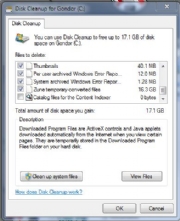 You can manually clean out old system files, as well--but that can be perilous, so delete such files with care. Also, Disk Cleanup allows you (under the More Options tab) to delete all but the most recent System Restore and Shadow Copy files. I recommend avoiding that--you never know if you'll need an older restore point to get a usable machine back if you run into problems.
Defrag Your Drive
Defragmenting your hard drive is useful after you've performed a sweep with Disk Cleanup. During the defrag process, your system performance will slow down, since the defragger keeps the hard drives pretty busy. The Windows 7 defrag utility is somewhat smart about this, but your PC will still be less responsive during the process; it's best to run the utility when you don't need timely system access.

Maintaining a Clean System: Steps to Take
Once you've cleaned out the junk, how do you keep your Windows system relatively clean? Here are several pointers. If an application has an "advanced" install option, use it. Go ahead and install to the default locations (if you want), but check what's being installed. Sometimes you'll have the option of telling the program not to run anything at system startup. Always watch the installer dialog box. Many users merely click the Next button every time the application's installer prompts them to do so.
But often the window will have checkboxes that install additional items, such as browser toolbars, quick-startup utilities, or other junk. If a window pops up in your browser asking you to install something, make sure you know what it is. It may just be a simple tool to help your browsing, or it may install something that runs at startup and saps your system resources. (Weatherbug, anyone?) In the worst-case scenario, it will install malware. Use tools such as Soluto and Msconfig frequently to make sure useless junk isn't running at startup. Clean your drive frequently, particularly temporary Internet and temporary installation files.
It takes only a few minutes a week to keep your system relatively clean, and if you do that, you'll likely be able to postpone the dreaded reformat and reinstall for a very long time.
You can, of course, manually clean out a lot of the junk on your system. Here are some ways to tackle the job.
Disk Cleanup
The past few versions of Windows have shipped with the Disk Cleanup utility, which you can launch by clicking Start, All Programs, Accessories, System Tools, Disk Cleanup. When I used this tool on my machine, I discovered 16.3 gigabytes of Zune temporary converted files.
Defrag Your Drive
Defragmenting your hard drive is useful after you've performed a sweep with Disk Cleanup. During the defrag process, your system performance will slow down, since the defragger keeps the hard drives pretty busy. The Windows 7 defrag utility is somewhat smart about this, but your PC will still be less responsive during the process; it's best to run the utility when you don't need timely system access.
System Configuration Utility
This tool is more commonly referred to as Msconfig. You launch it by typing msconfig in the Run bar. Using Msconfig lets you manually specify services to run, as well as startup applications. It's far from perfect, however: It doesn't give you any advice as to what services can be safely disabled, though you can hide Windows services, which makes the Services tab a little more manageable The Startup tab is more useful. The caution here, though, is that if you disable everything willy-nilly, some of your applications (such as your antivirus software) may not work. Still, stuff like the QuickTime Helper app and the Adobe Acrobat helper can be safely disabled.
Registry Editor
Use the Windows Registry Editor, aka "regedit," with caution. You could easily delete keys from the Registry permanently, and render your system unusable. A less serious risk is that you could make applications unusable, and then have to reinstall them. I've run into situations, however, in which a partial Registry edit makes it impossible to uninstall or reinstall an application--but the app won't run. If you're going to edit the Registry yourself, back it up first.
This screenshot of the Registry Editor shows only the first-level view; on lower levels the typical Registry contains many thousands of entries, often with arcane names such as
HKEY_LOCAL_MACHINE\SOFTWARE\{9F5FBC24-EFE2-4f90-B498-EC0FB7D47D15}. Understanding what to delete and what to keep can be fraught with peril.
If you're trying to root out Registry entries for an incompletely uninstalled piece of software, the editor does allow you to search. If you do this, be very specific with the search string. The application name is much better than, say, the company name. Searching for "Zune," for instance, will likely yield much safer results than searching for "Microsoft."
If you're trying to root out Registry entries for an incompletely uninstalled piece of software, the editor does allow you to search. If you do this, be very specific with the search string. The application name is much better than, say, the company name. Searching for "Zune," for instance, will likely yield much safer results than searching for "Microsoft."
Maintaining a Clean System: Steps to Take
Once you've cleaned out the junk, how do you keep your Windows system relatively clean? Here are several pointers. If an application has an "advanced" install option, use it. Go ahead and install to the default locations (if you want), but check what's being installed. Sometimes you'll have the option of telling the program not to run anything at system startup. Always watch the installer dialog box. Many users merely click the Next button every time the application's installer prompts them to do so.
But often the window will have checkboxes that install additional items, such as browser toolbars, quick-startup utilities, or other junk. If a window pops up in your browser asking you to install something, make sure you know what it is. It may just be a simple tool to help your browsing, or it may install something that runs at startup and saps your system resources. (Weatherbug, anyone?) In the worst-case scenario, it will install malware. Use tools such as Soluto and Msconfig frequently to make sure useless junk isn't running at startup. Clean your drive frequently, particularly temporary Internet and temporary installation files.
It takes only a few minutes a week to keep your system relatively clean, and if you do that, you'll likely be able to postpone the dreaded reformat and reinstall for a very long time.
Friday, October 15, 2010
Why Windows OS gets Slower in Time
Windows slowdown has three main causes: The Windows Registry gets bigger, DLLs and other junk are needlessly duplicated, and hard drives become fragmented. One other cause on machines that have a lot of programs installed is that a lot of background services and applications can be running, without your knowledge.
These potential problems aren't mutually exclusive.
The Registry can swell as you install more software, which in turn loads a lot of background tasks. Plus, your hard drive may fill up, making Windows auto-defragging harder. But let's look at these issues one at a time.
The Windows Registry
Windows maintains configuration settings, application install settings, and options in a database called the Windows Registry. As you install and uninstall applications or make changes to Windows, the Registry tends to grow larger and larger. For example, the Registry on my production PC, which has a ton of apps installed, is about 384MB--and that's just a backup.
As the Registry expands, applications and services that use it take longer to load. Searches conducted through the Registry by apps that may have written their data in multiple places also start to require more time. Some applications, such as security tools and certain media players (PowerDVD and the like), touch the data in a large number of locations.
The other culprit behind Registry bloat is incomplete uninstalls. Most users install or uninstall only a few applications per year, but some people (gamers and power users come to mind) tend to install and remove many programs. Incomplete uninstalls leave residue in the Registry, which adds to its size. Windows 7 and its program uninstaller is much improved in this respect, but still not perfect. As it turns out, however, Registry cleaners aren't really the way to go.
Associated Application Crud
When you install applications, sometimes they need various runtime modules to run. See all those separately installed copies of the Microsoft Visual C++ redistributable? You really need only the latest version. If you're running the 64-bit version, you might need two copies, one for 32-bit (labeled "x86") and one for 64-bit (x64). This is just one example of the kind of junk that can get installed on a system. It's hard to stop and track down, and determining whether removing it might break something is often difficult.
Unneeded Background Services and Tasks
The more stuff you install, the more the programs seem to install some kind of service in the background. Maybe that service will speed up an application launch. Maybe it's a control-panel applet for a high-end gaming mouse. Do I really need Impulse Now running all the time? I use it only when I'm running a game downloaded from Stardock's Impulse digital-delivery system, or when I'm buying a game from there. I certainly don't need it. And I rarely use Microsoft OneNote, so that doesn't have to run either.
Hard-Drive Issues
A machine's file system will become fragmented eventually. Windows 7 tries to minimize that by running the defragger in the background when the PC is idle. But if you frequently create and delete files (or use applications that create and delete files regularly), the file system is bound to become fragmented. System-performance issues can also crop up if the drive gets too full. If a drive is more than 90 percent full, swapping from main memory to the drive becomes very slow, which can drag down the system as a whole. It may be time to clean out your drive--or buy a bigger one.
Incomplete Uninstalls
The Windows uninstaller--as well as similar uninstall apps that ship with some software--doesn't always completely remove an application. This shortcoming causes the Registry to balloon, leaves extraneous files on the hard drive, and otherwise cruds up a system.
The Registry can swell as you install more software, which in turn loads a lot of background tasks. Plus, your hard drive may fill up, making Windows auto-defragging harder. But let's look at these issues one at a time.
The Windows Registry
Windows maintains configuration settings, application install settings, and options in a database called the Windows Registry. As you install and uninstall applications or make changes to Windows, the Registry tends to grow larger and larger. For example, the Registry on my production PC, which has a ton of apps installed, is about 384MB--and that's just a backup.
As the Registry expands, applications and services that use it take longer to load. Searches conducted through the Registry by apps that may have written their data in multiple places also start to require more time. Some applications, such as security tools and certain media players (PowerDVD and the like), touch the data in a large number of locations.
The other culprit behind Registry bloat is incomplete uninstalls. Most users install or uninstall only a few applications per year, but some people (gamers and power users come to mind) tend to install and remove many programs. Incomplete uninstalls leave residue in the Registry, which adds to its size. Windows 7 and its program uninstaller is much improved in this respect, but still not perfect. As it turns out, however, Registry cleaners aren't really the way to go.
Associated Application Crud
When you install applications, sometimes they need various runtime modules to run. See all those separately installed copies of the Microsoft Visual C++ redistributable? You really need only the latest version. If you're running the 64-bit version, you might need two copies, one for 32-bit (labeled "x86") and one for 64-bit (x64). This is just one example of the kind of junk that can get installed on a system. It's hard to stop and track down, and determining whether removing it might break something is often difficult.
Unneeded Background Services and Tasks
The more stuff you install, the more the programs seem to install some kind of service in the background. Maybe that service will speed up an application launch. Maybe it's a control-panel applet for a high-end gaming mouse. Do I really need Impulse Now running all the time? I use it only when I'm running a game downloaded from Stardock's Impulse digital-delivery system, or when I'm buying a game from there. I certainly don't need it. And I rarely use Microsoft OneNote, so that doesn't have to run either.
Hard-Drive Issues
A machine's file system will become fragmented eventually. Windows 7 tries to minimize that by running the defragger in the background when the PC is idle. But if you frequently create and delete files (or use applications that create and delete files regularly), the file system is bound to become fragmented. System-performance issues can also crop up if the drive gets too full. If a drive is more than 90 percent full, swapping from main memory to the drive becomes very slow, which can drag down the system as a whole. It may be time to clean out your drive--or buy a bigger one.
Incomplete Uninstalls
The Windows uninstaller--as well as similar uninstall apps that ship with some software--doesn't always completely remove an application. This shortcoming causes the Registry to balloon, leaves extraneous files on the hard drive, and otherwise cruds up a system.
Tuesday, September 21, 2010
Increasing Your Computer’s Performance the Easy Way
 Increasing Your Computer’s Performance the Easy Way
For Windows Vista/2007 and XP, Includes: PDF ebook.
System optimization and tweaks for Windows Vista/XP. Would you like your computer to run as fast as it did the very first day you brought it home? I uploaded an easy to follow step by step tutorial that will get your computer running great again. Through out this tutorial you will learn basic system maintenance tasks, how to clean and edit your windows registry, boost internet explorer’s performance, and optimize your system. If at any time you feel these tasks are too difficult or time consuming then download a Free copy of Increasing Your Computer’s Performance the Easy Way
Microsoft Windows Performance Boost
 Microsoft Windows Performance Boost
This Product Includes: PDF ebook.
Is my System Past its Prime?? When your computer was brand new it was running at its peek performance. There was no waiting when you clicked on an icon or visited a web page. There were no pop ups or mysterious errors slowing you down. Now those days are gone and you may be thinking your computer is past its prime, out of date or just plain broken. I have been working on computers for 20 years and I will tell you rarely is hardware ever the problem. In fact I will put a well maintained older system against a newer poorly maintained system any day of the week. What does this mean? Repairing your version of Windows and learning simple maintenance steps will save you from spending hundreds of dollars on a new computer. I find most people would rather give up and buy a new computer then learn how to repair and maintain the one they already own. Hey I understand lazy we all get that way when it comes to learning new things. That’s why I have tried by best to make this book as simple and easy to follow as possible.
To read more download Microsoft Windows Performance Boost PDF FREE
Subscribe to:
Posts (Atom)