Malware is a term used to describe a broad category of damaging software that includes viruses, worms, trojan horses, rootkits, spyware, and adware. The effects of malware range from brief annoyance to computer crashes and identity theft. Malware is easier to avoid than it is to remove. Avoiding malware involves a two-part strategy. Follow these guidelines for staying safe.
The single biggest factor in preventing a malware infection on your PC is you. You don't need expert knowledge or special training. You just need vigilance to avoid downloading and installing anything you do not understand or trust, no matter how tempting, from the following sources:
From a website: If you are unsure, leave the site and research the software you are being asked to install. If it is OK, you can always come back to site and install it. If it is not OK, you will avoid a malware headache.
From e-mail: Do not trust anything associated with a spam e-mail. Approach e-mail from people you know with caution when the message contains links or attachments. If you are suspicious of what you are being asked to view or install, don't do it.
From physical media: Your friends, family, and associates may unknowingly give you a disc or flash drive with an infected file on it. Don't blindly accept these files; scan them with security software. If you are still unsure, do not accept the files.
From a pop-up window: Some pop-up windows or boxes will attempt to corner you into downloading software or accepting a free "system scan" of some type. Often these pop-ups will employ scare tactics to make you believe you need what they are offering in order to be safe. Close the pop-up without clicking anything inside it (including the X in the corner). Close the window via Windows Task Manager (press Ctrl-Alt-Delete).
From another piece of software: Some programs attempt to install malware as a part of their own installation process. When installing software, pay close attention to the message boxes before clicking Next, OK, or I Agree. Scan the user agreement for anything that suggests malware may be a part of the installation. If you are unsure, cancel the installation, check up on the program, and run the installation again if you determine it is safe.
From illegal file-sharing services: You're on your own if you enter this realm. There is little quality control in the world of illegal software, and it is easy for an attacker to name a piece of malware after a popular movie, album, or program to tempt you into downloading it.
Remove Malware With the Right Software
Chances are that no matter how careful you are, you will be infected some day. That's because malware is designed to sneak onto your computer in ways you can't possibly foresee. Enlist the help of the following software:
An updated operating system: Use Windows Update. Take advantage of its ability to automatically notify you of updates, or better yet, to automatically download and install updates.
An updated browser: No matter which browser you use, keeping it current is vital to preventing infection. Take advantage of your browser's pop-up blocking, download screening, and automatic update features.
Antivirus software: You must run an antivirus program to be safe. Keep it updated, turned on, and schedule a scan to run at least once a month. (Don't run two antivirus programs; they will interfere with one another.)
Anti-malware: Also called anti-spyware, many antivirus applications include an anti-malware component. If yours does not, install and use a standalone anti-malware program that does not conflict with your antivirus program. Keep it updated.
Firewall: If you aren't running a third-party firewall, use Windows Firewall. (Don't run two firewalls at once; they will interfere with one another.)
Spam filter: If your e-mail program is not adequately filtering spam from your in-box, consider additional spam filtering software. If your security software is a security suite, spam filtering may be a feature that you need to switch on.
Showing posts with label spyware. Show all posts
Showing posts with label spyware. Show all posts
Friday, November 19, 2010
Tuesday, August 31, 2010
Naevius USB Antivirus (version 2.1).

Recently there are many case reported that "autorun" virus spread through so many computer due to using flash memory or pendrive, so we need a preventive action to stop this virus spread to our computer!
Naevius USB Antivirus (version 2.1).
USB drives are so popular and generally get used to move data between multiple systems frequently. Even though USB drives are very useful, they are potential breeding ground for viruses. When you stick your flash drive the host computer will look for commands in "autorun.inf" to be executed automatically. Normally those commands in "autorun.inf" are harmless, but if the file was modified, it may call for execution of a Trojan or whatever program in your USB flash drive automatically.
Naevius USB Antivirus is a tool which protects your pen drive from autorun-viruses.
Naevius USB Antivirus 2.1 is a powerful real-time antivirus application that protects your PC from all kinds of malware residing on USB drives connected to your system.
Key features of Naevius USB Antivirus.
- Protection against any Trojans, spyware, worms via USB storage.
- Compatible with any antivirus resident like for example: BitDefender, Nod32, Kaspersky, AVG, Norton, McAfee, Panda, AVAST etc.
- Protection in realtime with.
- 100% protection from outside with write-protected dummy "autorun.inf" file.
Download Naevius USB Antivirus

Malwarebytes Anti-Malware
 Malwarebytes Anti-Malware is a surprisingly effective freeware antimalware tool. It's a relatively speedy malware remover, with the quick scan taking about 8 minutes even with other high-resource programs running.
The heuristics engine proved on multiple computers during empirical testing that it was capable of determining the difference between false positives and dangerous apps. The app has some nice features rolled in, too. It supports multiple drive scanning including networked drives, context menu options including a scan-on-demand for individual files, and the FileAssassin option under the More Tools section for removing locked files.
The interface is simple, but pleasant-looking and well-organized. Tabs live just below the oversized logo, with few options per tab to keep down the clutter. The installation process was fast enough, but interestingly offered up the well-kept changelog and an instant definition file update. Do note that the real-time protection is restricted to the paid version, as is the scheduler for updates and scans. Overall, though, Malwarebytes Anti-Malware is a responsive malware remover that does what it should with a minimum of fuss.
Key Features:
* Support for Windows 2000, XP, and Vista.
* Light speed quick scanning.
* Ability to perform full scans for all drives.
* Malwarebytes’ Anti-Malware Protection Module. (requires registration)
* Database updates released daily.
* Quarantine to hold threats and restore them at your convenience.
* Ignore list for both the scanner and Protection Module.
* Settings to enhance your Malwarebytes’ Anti-Malware performance.
* A small list of extra utilities to help remove malware manually.
* Multi-lingual support.
* Works together with other anti-malware utilities.
* Command line support for quick scanning.
* Context menu integration to scan files on demand.
Download Malwarebytes Anti-Malware
Monday, July 12, 2010
Webroot Window Washer
 Webroot Window Washer is an internet tracks eraser and privacy cleaner software. As you work on your computer and browse the Internet, you leave behind traces of your activity. The Windows built-in functions will not protect you, most of the tracks can not be erased with them. Therefore, anyone else can see what you have been doing on your computer. Furthermore, much of your activity information takes up valuable disk space, and recovering this space can be very beneficial.
With a simple click Webroot Window Washer securely erase your internet tracks, computer activities and programs history information stored in many hidden files on your computer. It also provides you option to clean the data from your PC more securely so that they could not be recovered.
Webroot Window Washer allows you to erase Window's temp folders, run history, search history, open/save history, recent documents, your browser's cache, cookies, history, visited URLs, typed URLs, auto complete memory, index.dat files, and much more. You can also easily erase the tracks of up to 100 popular applications.
Key Features:
- Erase Internet Explorer Cache Files
- Erase Internet Explorer Browser History
- Erase Internet Explorer Cookies
- Erase Internet Explorer Typed URLs History
- Erase Internet Explorer Index.dat Files
- Erase Internet Explorer AutoComplete Memory
- Erase Windows Recent Documents History
- Erase Windows Start Menu Run/Find History
- Erase Windows Recycle Bin
- Erase Windows Temporary Files Directory
- Erase Windows open/save history
- Erase Windows MediaPlayer / RealOne Player history
- Erase Microsoft Office history
- Clear Google search history, Google toolbar history
- Clear Yahoo search history, Yahoo toolbar history
- Clear MSN search and toolbar history
- Cookies manager to select which cookies to keep
- Test mode before washing supports
- Support Mozilla Firefox, Netscape, Opera
- Support up to 100 popular applications
- Customize what files and registry entries you want to erase
- Schedule erasing to wash your system at any time
- Boss key to hide all browser windows in one quick keystroke
- Free space on your Hard Drive
- Speed up your computer
- 100% Spyware FREE, NOT contain any Spyware, Adware or Viruses.
- Platform: Windows XP / Vista
Buy Webroot Window Washer $49.99
Sunday, July 11, 2010
How To Remove Keylogger
Keylogger is a program that monitors your keystrokes on a personal computer. It will generally be controlled by an outside host and will log the user's private secure information to be used later, sometimes in a criminal manner.
One can find legal keylogger systems that are often installed by companies for productivity purposes. The malicious ones are often installed as a hidden part of software and attachable files may contain them too. The first step on how to remove a keylogger is to make use of security software. You should make sure that you have security software installed. This type of software is also freely available on the internet. The first thing is to do a security scan and if the software detects a problem, it will generally quarantine it. There are other ways you can try. If you do not feel confident about trying this yourself, get assistance from someone you trust.
You have to turn off the system restore option on your computer. Go to start/control panel/system/system restore and put a checkmark against 'turn off system restore on all drives.' Then 'apply.' This removes all restore points, but if there is a threat, the chances of being infected again are minimized. Now restart in safe mode. Press F8 while the computer is restarting and this will eventually offer you a safe mode option. Do a system scan again. Once you are satisfied that you have rid your computer of the spyware, re-activate 'system restore' again.
One can find legal keylogger systems that are often installed by companies for productivity purposes. The malicious ones are often installed as a hidden part of software and attachable files may contain them too. The first step on how to remove a keylogger is to make use of security software. You should make sure that you have security software installed. This type of software is also freely available on the internet. The first thing is to do a security scan and if the software detects a problem, it will generally quarantine it. There are other ways you can try. If you do not feel confident about trying this yourself, get assistance from someone you trust.
You have to turn off the system restore option on your computer. Go to start/control panel/system/system restore and put a checkmark against 'turn off system restore on all drives.' Then 'apply.' This removes all restore points, but if there is a threat, the chances of being infected again are minimized. Now restart in safe mode. Press F8 while the computer is restarting and this will eventually offer you a safe mode option. Do a system scan again. Once you are satisfied that you have rid your computer of the spyware, re-activate 'system restore' again.
Another option on removing keylogger is to do a 'system restore' to a time before the infection. This, however, can of course only be done if you know more or less when your system became infected. I personally managed to clean up my PC with a powerful spyware and keylogger cleaning software which you can find at Webroot Antivirus
Thursday, June 17, 2010
Spyware Software Removal - Spyware And Virus
Spyware can easily infect an unguarded computer and when this happens you need to use software for spyware removal to clean up your computer. In a few instances you can also get rid of the spyware by removing the program through which it entered your system.
Some people even manage to get rid of spyware through using manual means and there are actually some websites that will list names of all known spyware and will then tell you how you can identify the spyware and also how to get rid of it. This is however not the easiest option because to manually be rid of spyware requires having expert understanding about the way your computer's registry functions. For a person that does not know about the registry and its working it is not recommended that they try to manually remove the spyware.
A better option is to make use of software for spyware removal that will effectively clean up your computer and restore it to its original condition without too much trouble. The benefit of using such software is that it will do two things: remove existing spyware and also prevent future intrusions by spyware. However, people that create spyware can always circumvent this by creating brand new spyware that the software does not know exists and in this way can get back into a protected system.
When a new spyware emerges your current spyware removal program will fail to identify it and this means that it cannot prevent the spyware from getting back into your computer. To minimize such risks you will do well to make use of more than one such software programs and in this way get double protection.
After installing the spyware removal programs you should then start your computer in the Safe Mode which is when only the most essential files will be opened by the operating system.
In this environment your software for spyware removal will have a better chance of finding and getting rid of any existing spyware.
Some people even manage to get rid of spyware through using manual means and there are actually some websites that will list names of all known spyware and will then tell you how you can identify the spyware and also how to get rid of it. This is however not the easiest option because to manually be rid of spyware requires having expert understanding about the way your computer's registry functions. For a person that does not know about the registry and its working it is not recommended that they try to manually remove the spyware.
A better option is to make use of software for spyware removal that will effectively clean up your computer and restore it to its original condition without too much trouble. The benefit of using such software is that it will do two things: remove existing spyware and also prevent future intrusions by spyware. However, people that create spyware can always circumvent this by creating brand new spyware that the software does not know exists and in this way can get back into a protected system.
When a new spyware emerges your current spyware removal program will fail to identify it and this means that it cannot prevent the spyware from getting back into your computer. To minimize such risks you will do well to make use of more than one such software programs and in this way get double protection.
After installing the spyware removal programs you should then start your computer in the Safe Mode which is when only the most essential files will be opened by the operating system.
In this environment your software for spyware removal will have a better chance of finding and getting rid of any existing spyware.
Tuesday, June 15, 2010
Webroot Antivirus with Spysweeper
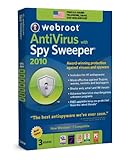 Webroot Antivirus with Spysweeper defends your identity and computer from prying spyware. This anti-spyware software is equipped to beat off malicious, information-seeking applications to keep your data private and safe. This program is easy to use and is constantly updated to combat emerging threats.
Spy Sweeper not only constantly evolves to be able to combat newly developed spyware but it is also effectively sly. It has the ability to run undetected by most malicious programs, so spyware doesn’t even get the chance to try to work around Spy Sweeper before it is already quarantined and subdued.
Not only can this software defend in realtime with email scans and more, but it also offers a choice of three different system scans. For the hands-on type it can run custom sweeps that will skip selected folders or extensions. Or it can be set to conduct a full sweep periodically on its own. Or if you are an alert and impatient type it can be commanded at anytime to run a quick sweep that is able to find dangerous spyware or malware in less than a minute. There is a wide range of people that use spyware software, some want to manually initiate scans and study the latest emergent threat. Others just want to install the anti-spyware software and rarely or never think about it again. Spy Sweeper can satisfy both types.
Nowadays personal computers are often used as a communication device and a way to get the latest news and entertainment, which requires connecting to the Internet. And if your computer is accessing the Internet, you and it are at risk. So why not protect your computer, your personal information and your online habits with the best anti-spyware software available, Spy Sweeper.
Spy Sweeper can ban unwanted, nasty guests from your computer and can safeguard all of your private information and Internet activity. Don’t be one of the 9 out of 10 Internet users that has simply become use to dealing with spyware. Protect your privacy and your computers health with Spy Sweeper.
Download your copy of Webroot Antivirus with Spysweeper
Thursday, June 3, 2010
BitDefender Antivirus
 BitDefender Antivirus: If you’re looking for absolute PC protection from viruses and more, you can’t go wrong with BitDefender Antivirus. Offering rock-solid security, simple usability, effective use of resources, and a valuable pricetag, BitDefender Antivirus 2010 is one of the best antivirus software solution we have tested.
 The 2010 edition builds on the already great program and adds some additional features that continue to improve overall PC performance and protection.
As online threats continue to evolve and target different vulnerabilities, BitDefender has grown their arsenal and is utilizing the most up-to-date technologies to combat viruses and other malware. BitDefender Antivirus 2010 offers a robust set of features and utility, but is flexible enough to meet the needs of various users. Whether you’re an advanced user looking to control the whole process manually, or a novice looking for a set-and-forget solution, BitDefender delivers an easy to use security solution.
In short, BitDefender Antivirus 2010 provides protection and peace of mind, without upsetting your PC performance or paycheck.
Scope of Protection:
BitDefender Antivirus protects you and your PC from a number of online threats, including viruses, spyware, phishing scams, and more. The software basically covers you from every angle, protecting you from threats on the internet, email, and even instant messaging. BitDefender scans all web, IM, and email traffic for malware. The software is even equipped to encrypt your IM conversations.
BitDefender’s scanners run in real-time, but don’t require a lot of resources. The new optimized scans run 30% faster than last year (which were already fast), without significantly increasing system load and even reducing the boot time.
Effectiveness:
Don’t be fooled by the inexpensive price and lesser-known name; BitDefender Antivirus is powerful and completely effective. Independent industry research tests (ICSA labs, West Coast Labs, Virus Bulletin VB 100% certification, AV-Comparatives) agree that BitDefender is an effective solution, and one of the best overall performers. BitDefender has garnered several certifications and awards over the years, and Antivirus 2010 continues the legacy.
BitDefender Antivirus 2010 is certainly one of the best security software solutions available, combining powerful features and excellent protection in an easy to use program. The software is effective, simple, and impressively priced.
Overall, you can’t go wrong with BitDefender Antivirus 2010 when it comes to virus protection, versatility, and value. For superior performance, protection, and price, we recommend BitDefender Antivirus 2010.
Go download your copy now
Monday, May 31, 2010
SUPERAntiSpyware Free Edition
 SuperAntispyware has a free and a paid version, so it passes my first test of being a free application that works well. The paid version also has a realtime scanner and scheduler that compares to Spybot's TeaTimer, or Windows Defender.
One of the best reasons for using SuperAntispyware is the fact that it actually can help remove some of the nastiest malware that has been released including the variety of Zlob trojan infections, Vundo infections, and more. Before I started using this program, I had to resort to specialized removal tools and a lot of manual techniques to rid some computers of these pests. Now, I run SuperAntispyware and then check what's left to remove. In many cases, the program has done most of the work for me.
Its also easy to use. You'll notice the main menu of the program below. You can scan your hard drive, check for updates to the program, find out what's in quarantine, and check the dates of your last scan and update. With the paid version you can also schedule your scanning and have realtime protection against spyware infections.
SuperAntispyware has impressed me so much that its now one of the first tools I use to remove problems on a computer. It's one of the only tools that can remove some infections by itself, and the creators of the program seem to update it on a regular basis.
Go download and try it out for yourself
Saturday, May 29, 2010
Why Your Computer IS Running So Slow
After some time, computers tend to slow down which is when their owners will start to wonder why is my computer running so slow - fix with registry cleaner. Most computer owners will be at a loss to explain the reason for this slowing down.
You could suspect the culprit to be one or more spyware programs but as you will soon find out this is not the crux of the problem because even after the spyware has been eliminated the computer will continue working slowly. The trouble it seems lies deep within the computer.
It is therefore a good idea that you research the possible reasons for a slow computer and after a while the truth will dawn on you that it is your computer registry that is the crux of the problem. This may not be very helpful to you because chances are that you won't understand much about registries and how they can cause computers to slow down. A registry contains certain instructions and some settings that aid the computer hardware and its software to function in the desired manner.
If you wish to remove computer registry errors then you have to learn how this can be done; however, if you learn more about the solution you should only do the cleaning if you have a strong grasp about making registry settings changes. Using a dedicated registry cleaner is always a better option and one that you should use as much as possible.
The right kind of registry cleaner will fix registry errors and that in turn means that your computer will once again start working as it should. Your computer might even start behaving like it did when you first brought it home.
But, despite using registry cleaners to fix registry errors there is still more work to be done because you have to also be careful about maintaining the registry. To do so would require that you periodically scan the registry so as to make the machine continue performing smoothly at all times.
You could suspect the culprit to be one or more spyware programs but as you will soon find out this is not the crux of the problem because even after the spyware has been eliminated the computer will continue working slowly. The trouble it seems lies deep within the computer.
It is therefore a good idea that you research the possible reasons for a slow computer and after a while the truth will dawn on you that it is your computer registry that is the crux of the problem. This may not be very helpful to you because chances are that you won't understand much about registries and how they can cause computers to slow down. A registry contains certain instructions and some settings that aid the computer hardware and its software to function in the desired manner.
If you wish to remove computer registry errors then you have to learn how this can be done; however, if you learn more about the solution you should only do the cleaning if you have a strong grasp about making registry settings changes. Using a dedicated registry cleaner is always a better option and one that you should use as much as possible.
The right kind of registry cleaner will fix registry errors and that in turn means that your computer will once again start working as it should. Your computer might even start behaving like it did when you first brought it home.
But, despite using registry cleaners to fix registry errors there is still more work to be done because you have to also be careful about maintaining the registry. To do so would require that you periodically scan the registry so as to make the machine continue performing smoothly at all times.
Saturday, May 22, 2010
Why We need to use a Registry Cleaner
It is a known fact that over 94% of PCs that are over 30 days old are infected with spyware and adware. Such software is rarely accompanied by an uninstall utility and even when it is it almost always leaves broken Windows Registry errors behind it.
The registry is essentially the catalog or reference source for your computer. Only those with a thorough knowledge of computers should attempt to change the registry. Before tampering with the registry. If you make a mistake while altering the registry and it is not backed up, you may lose information vital to the proper functioning of your computer.
Even if you bought an antispyware tool your Windows Registry might be broken - developers of those tools are focused on removing spyware and adware only, not every trace of software itself.
After you run a spyware program that deletes active spyware files, you are still left with references to those files in your computer registry. These traces will clog your registry over time, leaving your computer vulnerable to failure.
Problems with the Windows Registry are a common cause of Windows crashes and error messages.
Symptoms of Windows Registry Problems
Your PC is likely infected with Windows registry errors if it has ever experienced any of the problems:
PC runs much slower than when you first bought it
PC keeps crashing at critical times
PC does not startup correctly
PC does not shutdown correctly
PC needs frequent rebooting
Unable to remove a software using add/remove dialog
Getting the "Blue Screen"
The registry records the relationship between hardware, memory space, and addressing. It contains information and settings for all the hardware, software, users, and preferences of the computer. The registry is stored on your computer in several files and depending upon your version of Windows, there will be different files and different locations for these files. The registry keep growing when you use Windows and become corrupted as software and hardware is added and removed from your computer.
To keep your computer in top performance, it is recommended to periodically clean your Windows registry with a reliable and efficient Registry Cleaner. Registry Cleaner is an utility program that scans the Windows Registry and looks for outdated and invalid entries.
In short, the registry cleaner cleans the following:
Temporary files, URL history, cookies, Auto complete form history, index.dat. of Internet Explorer, Firefox, and Opera
Temporary files and Log files, recycle bin, recent documents of Windows
Unused and old entries, including File Extensions, Shared DLLs, Fonts ActiveX Controls, Icons, Invalid Shortcuts, ClassIDs, ProgIDs, Uninstallers, Help Files, Application Paths, and more...
Removes temporary files and recent file lists (MRUs) from many apps including Media Player, eMule, Kazaa, WinRAR, WinAce, WinZip, Google Toolbar, Netscape, MS Office, Nero, Adobe Acrobat, and many more...
There are dozens of programs on the market that cleans registry, boosts PCs performance, get rid of unwanted material and prevent crashes. Some of the prominent ones are: Error Doctor, Reg Cure, PAL Registry Cleaner, JV16 PowerTools, EasyCleaner, Adv. System Optimizer, Fix-It Utilities, Ace Utilities, Registry Mechanic, Registry Repair, RegistryFix.
A good windows registry clean and repair product should have the following options:
Automatic Scan:
This is the simplest way to clean up the registry. Automatic Scan is recommended for 'non-technical' users.
Custom Scan:
You can customize the search and scan Windows registry for particular types of errors (shared DLLs, missing fonts, invalid start-up entries, etc.).
Manual Cleanup:
After the scan is complete, the program should show a full list of errors with details, broken down by types and let you fix individual invalid entries or all invalid entries of a certain type.
Backup and Undo:
Before removing an entry from your registry, should an automatic creation of a backup file be done, that can be used to undo the changes. This to avoid changes without backup.
Scheduler:
To schedule the program to scan the registry whenever you start your PC.
Using software like this is not a one time fix. You must run it on a regular basis to keep your registry clean and without errors. This will help the stability and speed of windows.
Thus every PC requires registry cleaner which optimizes windows registry allowing Windows to run faster and freeing up valuable hard disk space. Valuable registry repair software can help you get your computer back into shape, tuned up and running problem free in no time.
The registry is essentially the catalog or reference source for your computer. Only those with a thorough knowledge of computers should attempt to change the registry. Before tampering with the registry. If you make a mistake while altering the registry and it is not backed up, you may lose information vital to the proper functioning of your computer.
Even if you bought an antispyware tool your Windows Registry might be broken - developers of those tools are focused on removing spyware and adware only, not every trace of software itself.
After you run a spyware program that deletes active spyware files, you are still left with references to those files in your computer registry. These traces will clog your registry over time, leaving your computer vulnerable to failure.
Problems with the Windows Registry are a common cause of Windows crashes and error messages.
Symptoms of Windows Registry Problems
Your PC is likely infected with Windows registry errors if it has ever experienced any of the problems:
PC runs much slower than when you first bought it
PC keeps crashing at critical times
PC does not startup correctly
PC does not shutdown correctly
PC needs frequent rebooting
Unable to remove a software using add/remove dialog
Getting the "Blue Screen"
The registry records the relationship between hardware, memory space, and addressing. It contains information and settings for all the hardware, software, users, and preferences of the computer. The registry is stored on your computer in several files and depending upon your version of Windows, there will be different files and different locations for these files. The registry keep growing when you use Windows and become corrupted as software and hardware is added and removed from your computer.
To keep your computer in top performance, it is recommended to periodically clean your Windows registry with a reliable and efficient Registry Cleaner. Registry Cleaner is an utility program that scans the Windows Registry and looks for outdated and invalid entries.
In short, the registry cleaner cleans the following:
Temporary files, URL history, cookies, Auto complete form history, index.dat. of Internet Explorer, Firefox, and Opera
Temporary files and Log files, recycle bin, recent documents of Windows
Unused and old entries, including File Extensions, Shared DLLs, Fonts ActiveX Controls, Icons, Invalid Shortcuts, ClassIDs, ProgIDs, Uninstallers, Help Files, Application Paths, and more...
Removes temporary files and recent file lists (MRUs) from many apps including Media Player, eMule, Kazaa, WinRAR, WinAce, WinZip, Google Toolbar, Netscape, MS Office, Nero, Adobe Acrobat, and many more...
There are dozens of programs on the market that cleans registry, boosts PCs performance, get rid of unwanted material and prevent crashes. Some of the prominent ones are: Error Doctor, Reg Cure, PAL Registry Cleaner, JV16 PowerTools, EasyCleaner, Adv. System Optimizer, Fix-It Utilities, Ace Utilities, Registry Mechanic, Registry Repair, RegistryFix.
A good windows registry clean and repair product should have the following options:
Automatic Scan:
This is the simplest way to clean up the registry. Automatic Scan is recommended for 'non-technical' users.
Custom Scan:
You can customize the search and scan Windows registry for particular types of errors (shared DLLs, missing fonts, invalid start-up entries, etc.).
Manual Cleanup:
After the scan is complete, the program should show a full list of errors with details, broken down by types and let you fix individual invalid entries or all invalid entries of a certain type.
Backup and Undo:
Before removing an entry from your registry, should an automatic creation of a backup file be done, that can be used to undo the changes. This to avoid changes without backup.
Scheduler:
To schedule the program to scan the registry whenever you start your PC.
Using software like this is not a one time fix. You must run it on a regular basis to keep your registry clean and without errors. This will help the stability and speed of windows.
Thus every PC requires registry cleaner which optimizes windows registry allowing Windows to run faster and freeing up valuable hard disk space. Valuable registry repair software can help you get your computer back into shape, tuned up and running problem free in no time.
Tuesday, May 18, 2010
AVG Internet Security 9.0
 AVG Internet Security 9.0 introduces a few new features, with improvements focused on performance, including claims of faster scan and boot times. One new feature is the Identity Theft Recovery Unit. Only for users in the United States, ITRU is a business partnership with Identity Guard which provides "consumer identity theft solutions," accessible only from the AVG toolbar in Firefox and Internet Explorer.
The interface is nearly unchanged from the last version, and generally it's easy to use. A scheduling utility automates both scans and updates, while the upgrade ad at the screen's bottom can be easily hidden using the Hide Notification button. When starting a scan, a slider makes it easy to jump between Slow, Automatic, and Fast scans: the faster the scan, the less comprehensive it is, so users should take advantage of the scan optimization that is recommended during installation to speed up that first scan. Should a virus create serious problems, AVG creates a rescue disk to scan your computer in MS-DOS mode.
The LinkScanner feature protects you from third-party code exploits before they load in your browser and for ranking search results. The program doesn't obviously tax your system when scanning or when running in the background, although it's been determined that it will slow down your system's boot time, and slightly delay shutting down. AVG also detected some image files as threats, when two other scans decided they weren't--we decided these were false positives. AVG might not be the fastest or the most effective free security option, but it still gets the job done and you're better off with it.
Friday, May 14, 2010
Easy ways to Protect Your PC from Viruses
Use a high quality anti-virus program, there are many different anti-virus computers programs on the market some of them are better than others. Look to reputable computer magazines or websites for ratings to help you find the one that matches your needs.
Always use your anti-virus program and make sure it's turned on and scanning, incoming and outgoing email messages, and any software programs you run. Keep your antivirus programs up to date, most programs come with a yearly subscription, make sure you take advantage of the updates. More advanced programs allow you to schedule updates or full system scans for "off hours" like 2AM when you aren't likely to be using your computer. From time to time operating systems fall victim to security holes or issue updates. Make sure you check periodically to make sure you are running stable up to date versions of your software.
Most windows computer users keep their documents in the "My documents" folder, this makes it easy to back up all of your important documents. Make weekly or monthly copies to CD or USB drives. If you use floppy disks or USB drives on public computers like your school computer lab, or even digital photo printing store make sure you scan them for viruses. Public computers are notorious for not being up to date and properly protected.
Be wary of email attachments, treat any email attachment as potentially dangerous. Never open attachments from people you don't know, also be careful of attachments from people you know but weren't expecting. Many computer viruses replicate themselves by reading the contacts from an infected computer. Use text email if possible, while HTML email is prettier and allows you more control over formatting it also can carry computer viruses. If you use text based email the only way to get a virus is by opening an attachment.
Use downloaded freeware and shareware files or software with caution. Try to download them from popular reputable sources that scan the programs before they are uploaded. To make sure you are safe, scan the program before you install it on your computer.
Be wary of links in IM, yahoo, MSN or instant messaging software. Don't accept invitations from people you don't know and never click a link from someone you don't trust, they can easily redirect you to another website that will try to install a virus on your computer system.
Always use your anti-virus program and make sure it's turned on and scanning, incoming and outgoing email messages, and any software programs you run. Keep your antivirus programs up to date, most programs come with a yearly subscription, make sure you take advantage of the updates. More advanced programs allow you to schedule updates or full system scans for "off hours" like 2AM when you aren't likely to be using your computer. From time to time operating systems fall victim to security holes or issue updates. Make sure you check periodically to make sure you are running stable up to date versions of your software.
Most windows computer users keep their documents in the "My documents" folder, this makes it easy to back up all of your important documents. Make weekly or monthly copies to CD or USB drives. If you use floppy disks or USB drives on public computers like your school computer lab, or even digital photo printing store make sure you scan them for viruses. Public computers are notorious for not being up to date and properly protected.
Be wary of email attachments, treat any email attachment as potentially dangerous. Never open attachments from people you don't know, also be careful of attachments from people you know but weren't expecting. Many computer viruses replicate themselves by reading the contacts from an infected computer. Use text email if possible, while HTML email is prettier and allows you more control over formatting it also can carry computer viruses. If you use text based email the only way to get a virus is by opening an attachment.
Use downloaded freeware and shareware files or software with caution. Try to download them from popular reputable sources that scan the programs before they are uploaded. To make sure you are safe, scan the program before you install it on your computer.
Be wary of links in IM, yahoo, MSN or instant messaging software. Don't accept invitations from people you don't know and never click a link from someone you don't trust, they can easily redirect you to another website that will try to install a virus on your computer system.
Subscribe to:
Posts (Atom)