You can, of course, manually clean out a lot of the junk on your system. Here are some ways to tackle the job.
Disk Cleanup
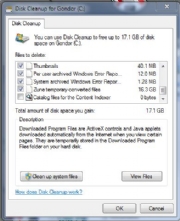
The past few versions of Windows have shipped with the Disk Cleanup utility, which you can launch by clicking Start, All Programs, Accessories, System Tools, Disk Cleanup. When I used this tool on my machine, I discovered 16.3 gigabytes of Zune temporary converted files.
Defrag Your Drive
Defragmenting your hard drive is useful after you've performed a sweep with Disk Cleanup. During the defrag process, your system performance will slow down, since the defragger keeps the hard drives pretty busy. The Windows 7 defrag utility is somewhat smart about this, but your PC will still be less responsive during the process; it's best to run the utility when you don't need timely system access.
System Configuration Utility
This tool is more commonly referred to as Msconfig. You launch it by typing msconfig in the Run bar. Using Msconfig lets you manually specify services to run, as well as startup applications. It's far from perfect, however: It doesn't give you any advice as to what services can be safely disabled, though you can hide Windows services, which makes the Services tab a little more manageable The Startup tab is more useful. The caution here, though, is that if you disable everything willy-nilly, some of your applications (such as your antivirus software) may not work. Still, stuff like the QuickTime Helper app and the Adobe Acrobat helper can be safely disabled.
Registry Editor
Use the Windows Registry Editor, aka "regedit," with caution. You could easily delete keys from the Registry permanently, and render your system unusable. A less serious risk is that you could make applications unusable, and then have to reinstall them. I've run into situations, however, in which a partial Registry edit makes it impossible to uninstall or reinstall an application--but the app won't run. If you're going to edit the Registry yourself, back it up first.

This screenshot of the Registry Editor shows only the first-level view; on lower levels the typical Registry contains many thousands of entries, often with arcane names such as
HKEY_LOCAL_MACHINE\SOFTWARE\{9F5FBC24-EFE2-4f90-B498-EC0FB7D47D15}. Understanding what to delete and what to keep can be fraught with peril.
If you're trying to root out Registry entries for an incompletely uninstalled piece of software, the editor does allow you to search. If you do this, be very specific with the search string. The application name is much better than, say, the company name. Searching for "Zune," for instance, will likely yield much safer results than searching for "Microsoft."
If you're trying to root out Registry entries for an incompletely uninstalled piece of software, the editor does allow you to search. If you do this, be very specific with the search string. The application name is much better than, say, the company name. Searching for "Zune," for instance, will likely yield much safer results than searching for "Microsoft."
Maintaining a Clean System: Steps to Take
Once you've cleaned out the junk, how do you keep your Windows system relatively clean? Here are several pointers. If an application has an "advanced" install option, use it. Go ahead and install to the default locations (if you want), but check what's being installed. Sometimes you'll have the option of telling the program not to run anything at system startup. Always watch the installer dialog box. Many users merely click the Next button every time the application's installer prompts them to do so.
But often the window will have checkboxes that install additional items, such as browser toolbars, quick-startup utilities, or other junk. If a window pops up in your browser asking you to install something, make sure you know what it is. It may just be a simple tool to help your browsing, or it may install something that runs at startup and saps your system resources. (Weatherbug, anyone?) In the worst-case scenario, it will install malware. Use tools such as Soluto and Msconfig frequently to make sure useless junk isn't running at startup. Clean your drive frequently, particularly temporary Internet and temporary installation files.
It takes only a few minutes a week to keep your system relatively clean, and if you do that, you'll likely be able to postpone the dreaded reformat and reinstall for a very long time.
